How to add billing details and a VAT ID, and download invoices in BuzzBlaster
To add billing details in BuzzBlaster, open Settings → Billing details, fill in your company and VAT ID, and click Save changes. Every credit purchase then creates an invoice you can download as a PDF under Settings → Invoices.
Fill in your billing details
- Click Settings, then Billing details.
- Fill in Company name, Company email, Street address, City, Country and Postal or ZIP code. Address line 2 and State, province, or region are optional.
- Answer Is this a business purchase?
- For a business in the EU, enter your VAT ID.
- Click Save changes.
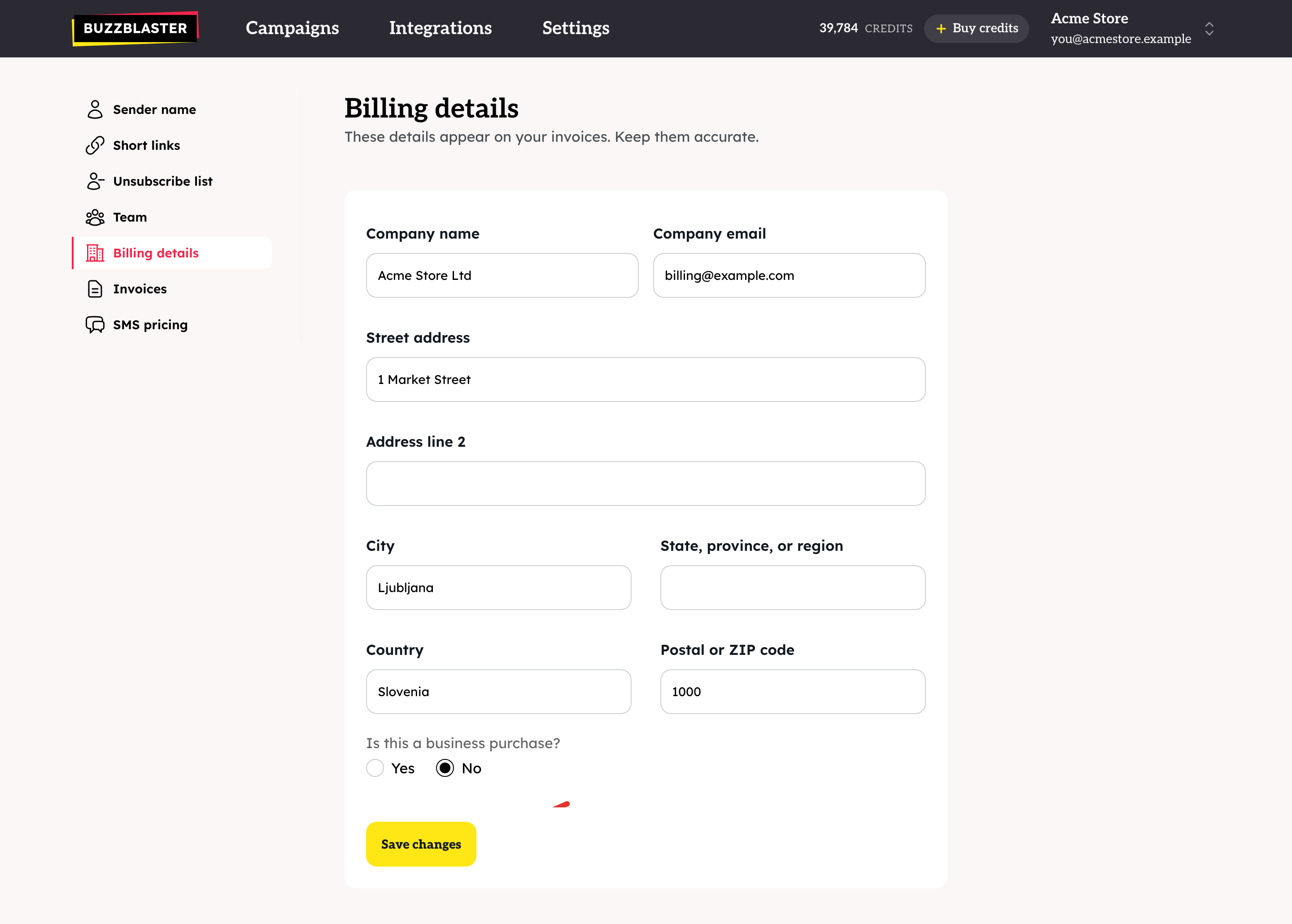
Fill them in once per organization, before you buy credits. Your billing details are printed on every invoice.
Do I need a VAT ID?
Yes, if you buy as a business in the EU. Without it, saving shows "A VAT ID is required for EU businesses." BuzzBlaster checks the number in the EU VIES register when you save.
| You see | What it means |
|---|---|
| "VIES-verified" with your registered name | The VAT ID is valid. |
| "Verification pending" | The check is not finished. VAT is charged until your ID verifies. Check again in a few minutes. |
| "This VAT ID did not verify" | The check failed and VAT is charged. Check the number and the country, then save again. |
Download an invoice
- Click Settings, then Invoices.
- Find the purchase by date and click PDF.
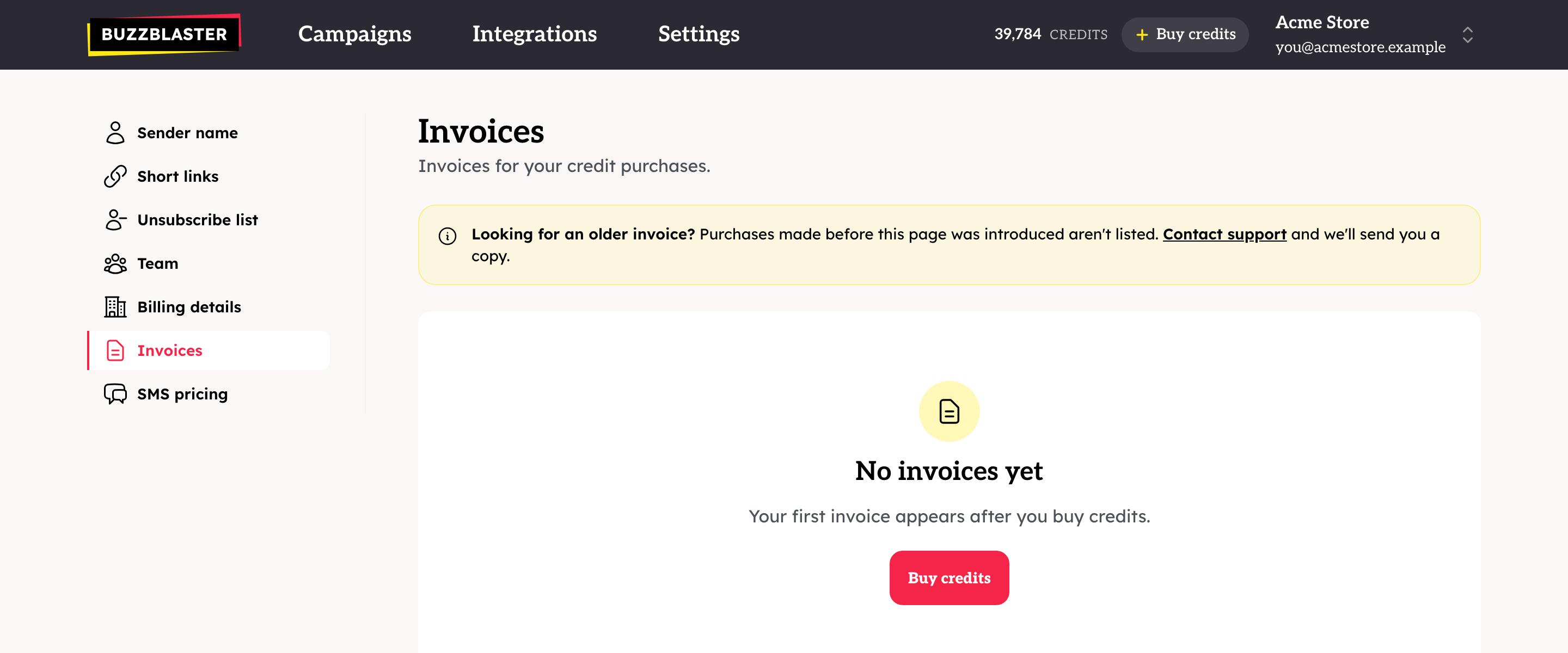
"Generating…" means the PDF is still being made. Try again in a moment. Use Load more for older invoices.
Good to know
- An email with a link to each new invoice goes to the Company email in your billing details. To send invoices to another address, change the Company email.
- Each organization has its own billing details and invoices.
Questions
I cannot find an older invoice. Purchases made before the Invoices page existed are not listed. Contact support and we send you a copy.
The invoice email did not arrive. Check your spam folder and the Company email in your billing details. The PDF is always on the Invoices page.
The invoice has the wrong company. Fix your billing details for future invoices, and contact support about the existing one.
Still stuck? Email support@buzzblaster.io, or open the account menu (top right) and click Contact support.