How to import phone numbers from a CSV file in BuzzBlaster
To import phone numbers into BuzzBlaster, upload a CSV file on the New campaign page, check which column holds the numbers, and click Import contacts. Every number needs a country calling code, or the file needs a country column. BuzzBlaster removes duplicates and groups the recipients by country.
Before you begin: save your list as a CSV file, for example an export from your shop or your spreadsheet. Need an example? Download the sample file: buzzblaster-sample.csv.
Which phone number format does BuzzBlaster accept?
The international format: a plus sign, the country calling code, then the number, for example +44 7400 123456. A number in local format, starting with 0, also works if the same row has a country column.
| In your file | Imported? |
|---|---|
+49 151 2345 6789 |
Yes |
(+49) 151 2345 6789, 0049 151 2345 6789 or 49 151 2345 6789 |
Yes |
0151 2345 6789 with DE, DEU or Germany in a country column |
Yes |
07400 123456 with GB or United Kingdom in a country column |
Yes |
07400 123456 with UK in a country column |
No. The two-letter code for the United Kingdom is GB. |
0151 2345 6789 with no country column |
No. BuzzBlaster cannot tell the country. |
| A landline number | No. Landlines cannot receive SMS. |
A country column can hold the two-letter code (DE), the three-letter code (DEU) or the English country name (Germany). Names in other languages, such as Deutschland, are not read.
Prepare the file
- Save it as a CSV file. Comma, semicolon and tab separators all work. An Excel .xlsx file is not read.
- Extra columns such as email and name are fine. BuzzBlaster uses only the phone number and the country. Names are not added to your messages.
- Limits: 30 MB and 1,000,000 rows per campaign. Split a bigger list into several campaigns.
Upload the file
- On the Campaigns page, click New campaign and type a Campaign name.
- Choose From CSV file. Drag your file onto the box or click browse.
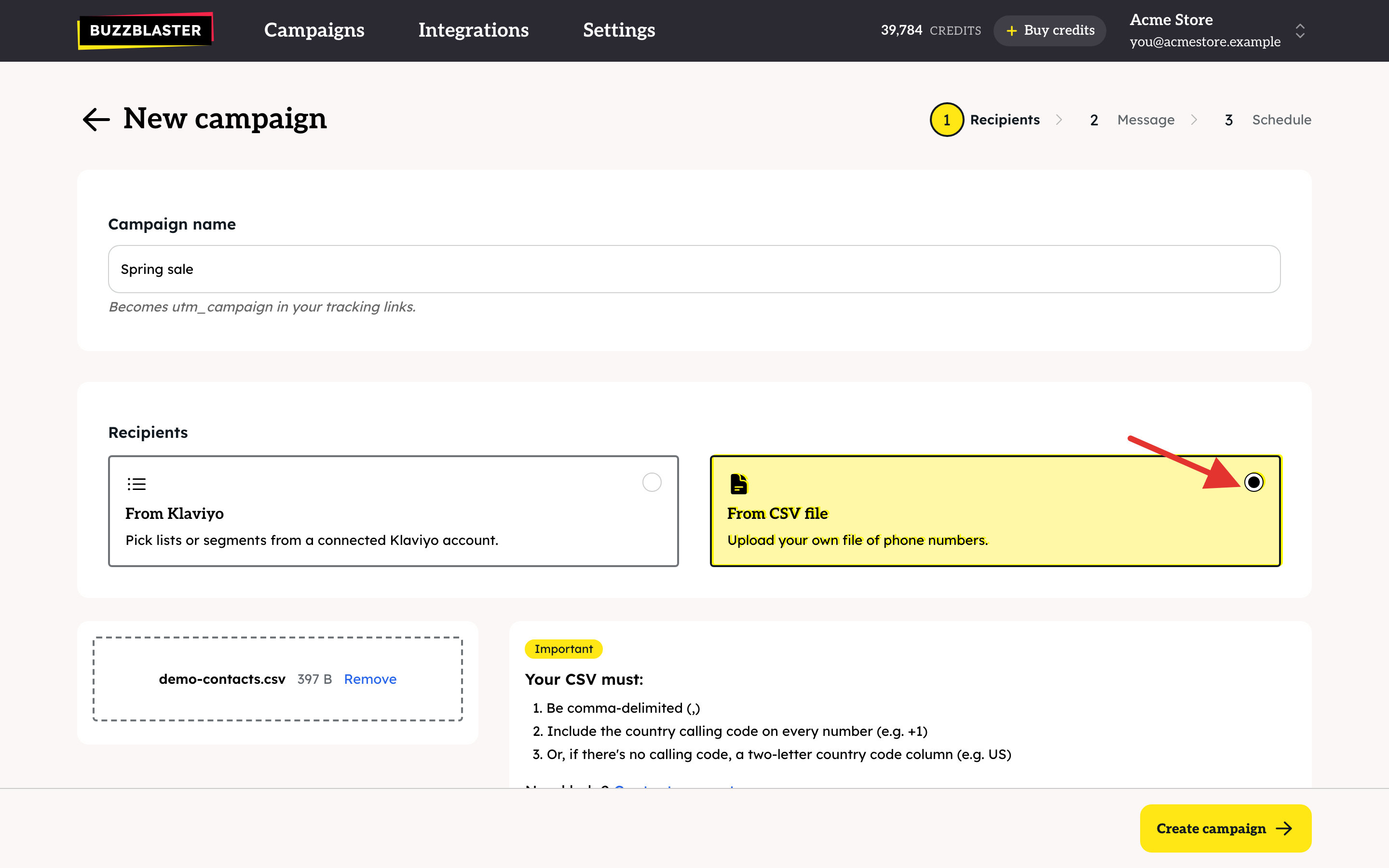
- Click Create campaign.
- On Columns in your file, check the column set to Phone number. Set other columns to Country, Email, Name or Don't import. Tick First row is a header if row 1 holds column titles.
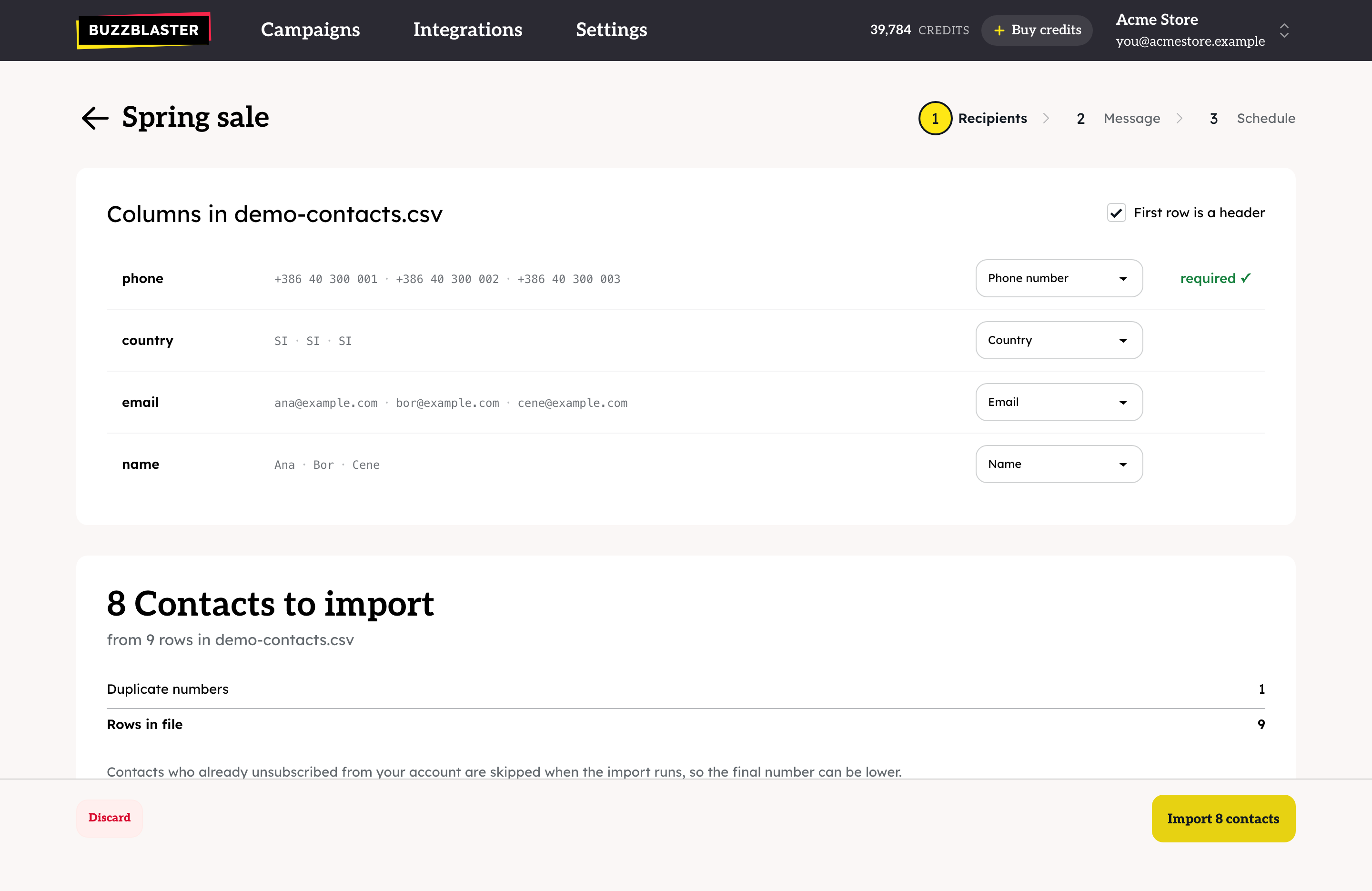
- Check the counts: Contacts to import, Duplicate numbers and Rows in file.
- Click Import contacts.
The import runs in the background. Large files can take a few minutes, and you can close the tab. When it finishes you go to the Message step.
Why were fewer contacts imported?
- Duplicate numbers are imported once.
- Landline numbers cannot receive SMS and are left out.
- Numbers from countries BuzzBlaster does not send to are left out. See How to check which countries you can send SMS to with BuzzBlaster.
- People who unsubscribed from your organization before are skipped during the import, so the final number can be lower than Contacts to import.
Questions
"The phone numbers in that file have no country calling code." Add the code to every number, or add a country column, then upload again.
"We couldn't read phone numbers from that file." Save the file as CSV, with one column of phone numbers.
"Choose which column holds the phone number." Set one column to Phone number.
The import does not move. If nothing changes for about 5 minutes, a warning appears. Cancel import keeps the contacts imported so far.
Do I need to upload my list again for every campaign? Yes, each campaign has its own recipients. People who unsubscribed are always skipped, in every campaign.
Still stuck? Email support@buzzblaster.io, or open the account menu (top right) and click Contact support.