How to get started with BuzzBlaster
To get started with BuzzBlaster, log in at app.buzzblaster.io, create an organization for your shop, and send your first SMS with the demo campaign. Creating an account is free. You pay for messages with prepaid credits, and there is no monthly fee.
Before you begin: you need an email address you can open right now. To send a real campaign later you also need your company billing details.
Log in for the first time
- Open app.buzzblaster.io.
- Type your email address and click Email me a login link. You can also click Continue with Google to use your Google account.
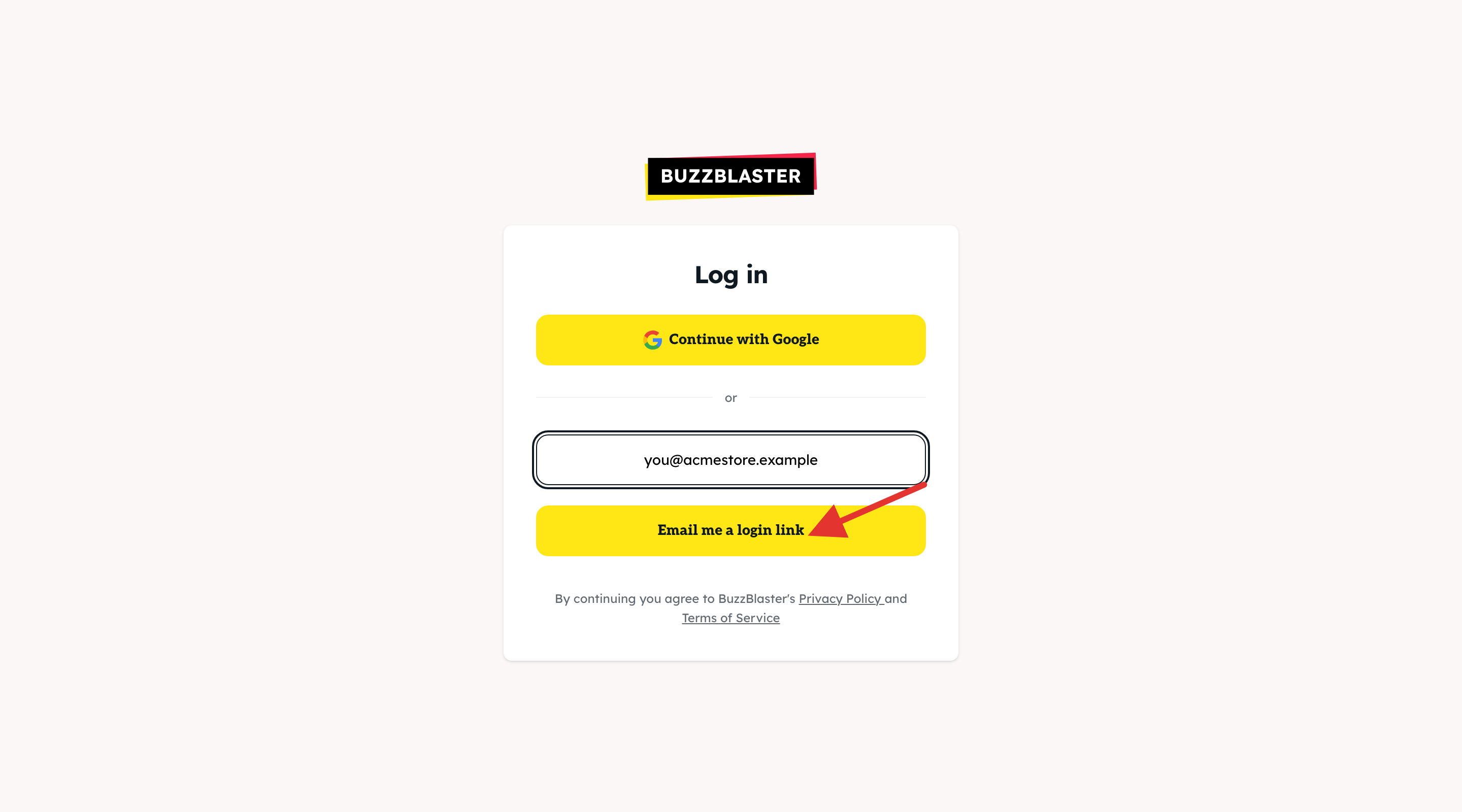
- Open the email from BuzzBlaster. Click the link, or type the 6-digit code on the login page. Use the newest email if you asked for more than one.
- Tick Keep me logged in for 14 days if you want to stay logged in on this browser.
- The first time, BuzzBlaster asks you to Create organization. Type the name of your shop or company and click Create organization.
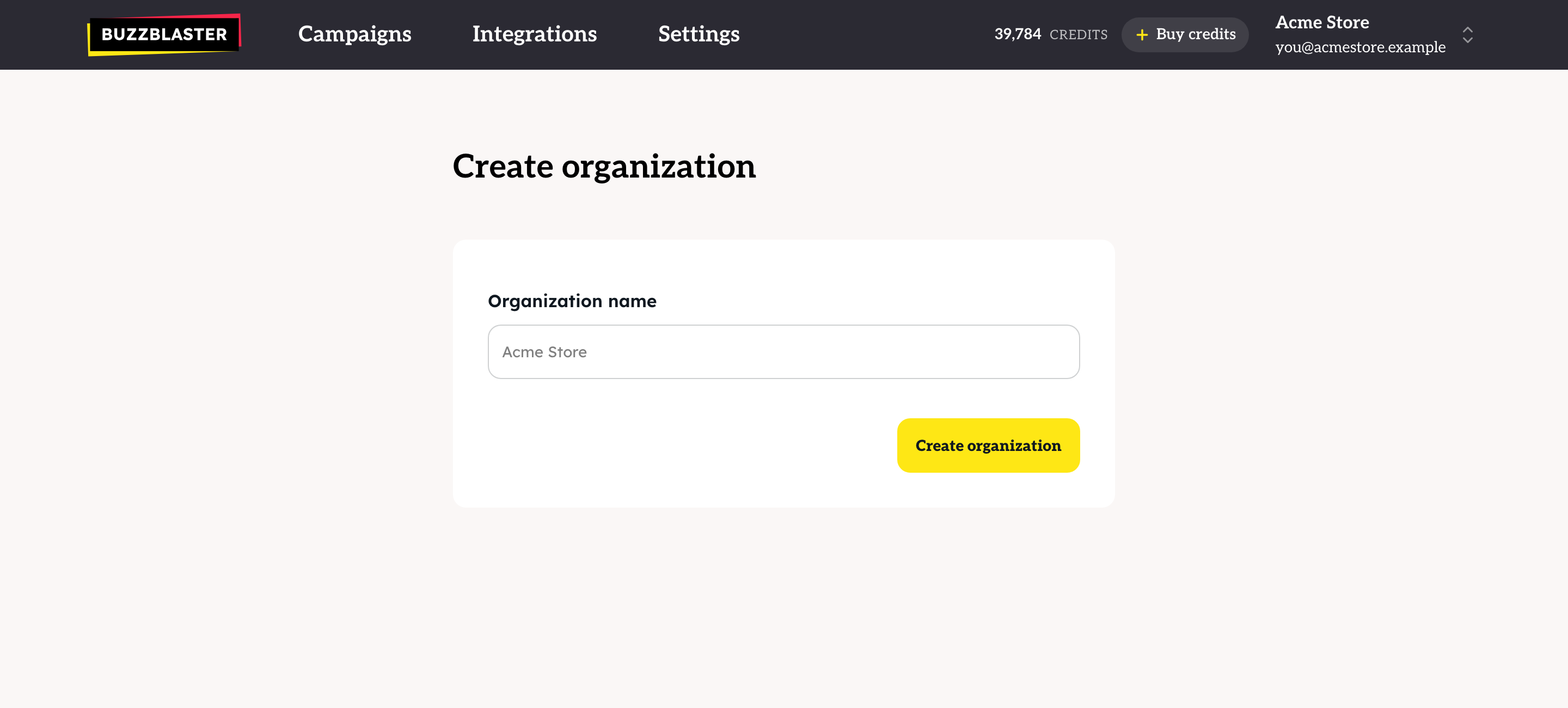
Your organization holds your campaigns, credits, sender name, invoices and team. You can create more organizations later, for example one per shop.
What should I do first?
You land on the Campaigns page. The three cards at the top are the best order to start in:
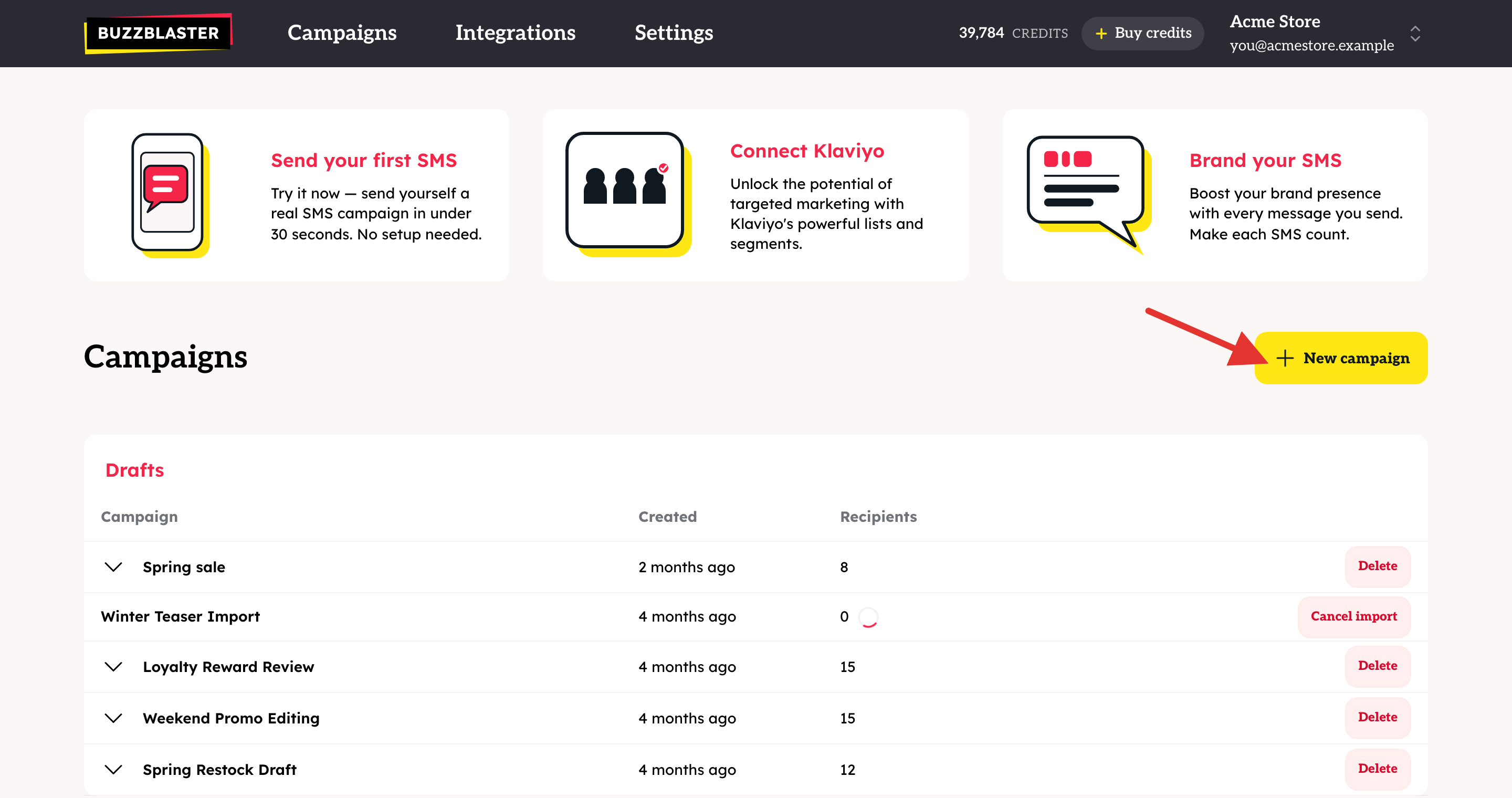
- Send your first SMS: send a demo campaign to your own phone. See How to send your first SMS with the demo campaign in BuzzBlaster.
- Connect Klaviyo: pick your Klaviyo lists and segments as recipients. No Klaviyo? You can upload a CSV file instead.
- Brand your SMS: set the sender name your customers see.
Before your first real campaign, fill in Settings → Billing details, then click New campaign. See How to send a bulk SMS campaign in BuzzBlaster.
Good to know
- Every new account gets 3 free test messages to your own phone.
- BuzzBlaster sends to 29 European countries.
- BuzzBlaster runs in the browser. There is no phone app.
- To log out, open the account menu (top right) and click Log out.
Questions
The login email does not arrive. Check your spam folder, then ask for a new email. Codes stay valid for a few minutes only, so use the newest one.
I see "We can't deliver mail to that address." Check the spelling of your email address. Some disposable addresses are not accepted.
Still stuck? Email support@buzzblaster.io, or open the account menu (top right) and click Contact support.