How to skip contacts you messaged recently in BuzzBlaster
BuzzBlaster skips anyone your organization messaged in the last 24 hours, and you can set that window from 0 to 168 hours in Sending preferences. This stops one person from getting two campaigns in a row. Klaviyo calls a similar setting Smart Sending.
Before you begin: start a campaign and go to its Schedule step. The setting is reached from there.
Change the number of hours
- On the Schedule step, find the line "Anyone you messaged in the last 24 hours will be skipped."
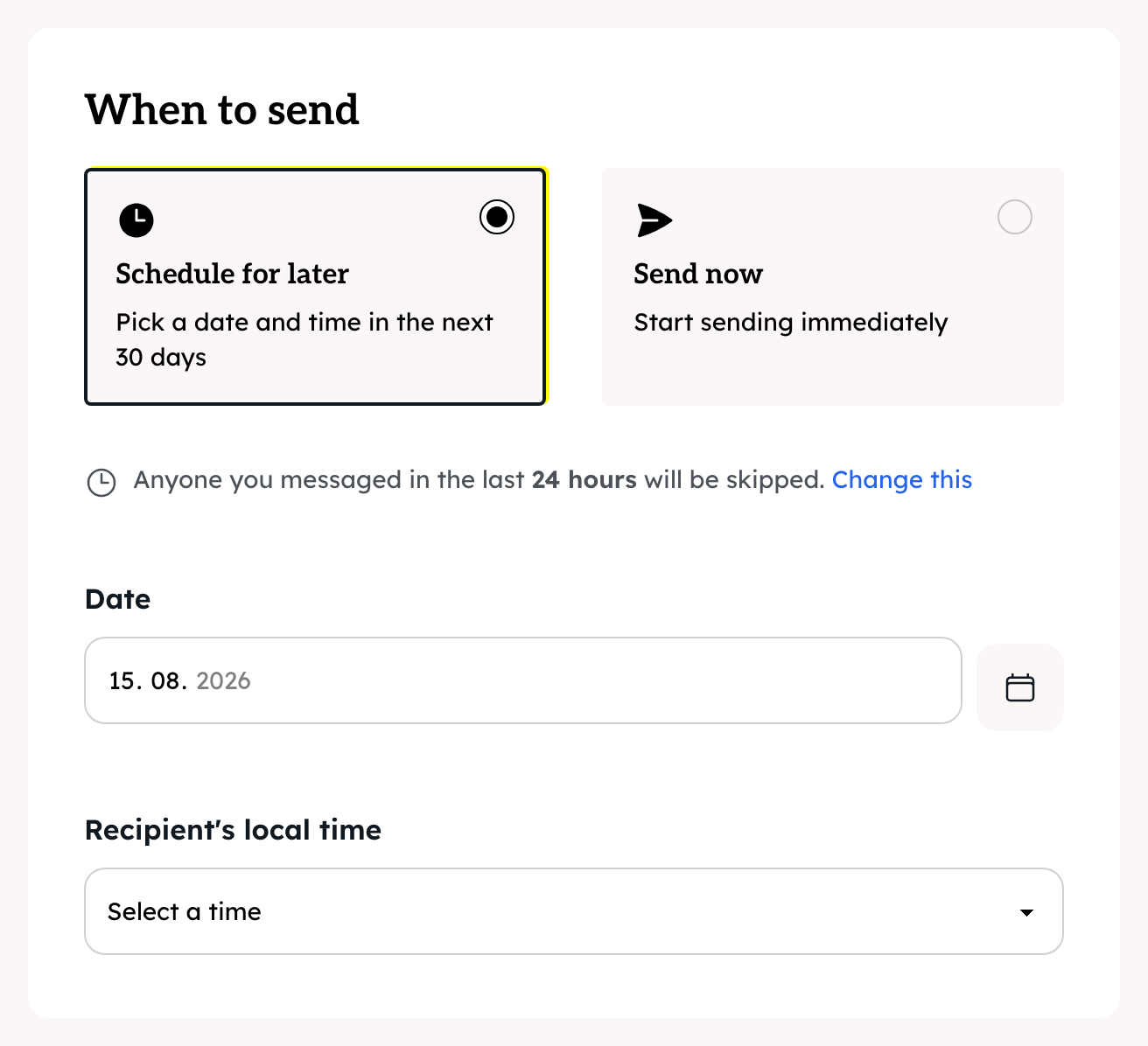
- Click Change this. The Sending preferences page opens.
- In Skip recipients messaged in the last (hours), type a number from 0 to 168. 168 hours is one week.
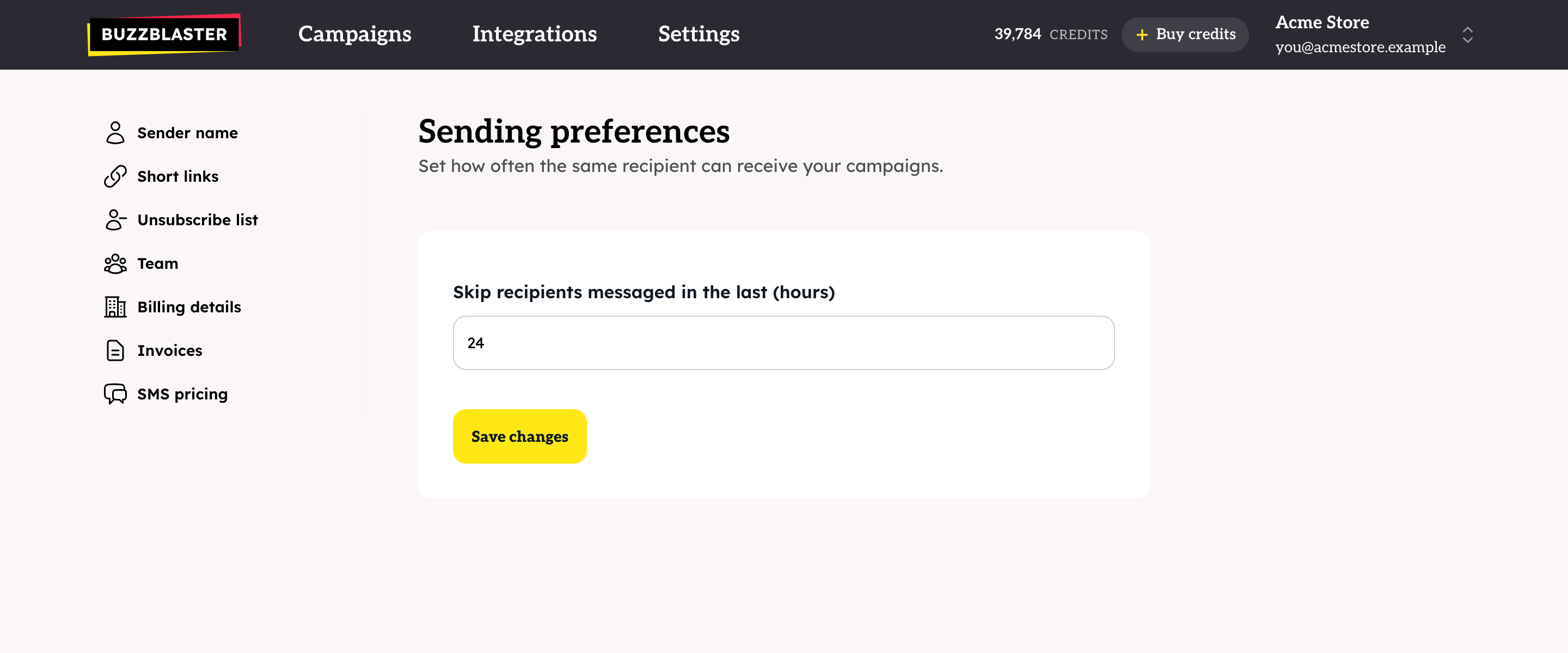
- Click Save changes.
Type 0 to skip nobody. The Schedule step then says "Nobody is skipped for having been messaged recently."
Which messages count?
Every SMS your organization sent to that phone number, from any campaign. The check runs when each message is about to go out, not when you schedule. So a campaign scheduled for Friday skips people who got another campaign from you on Thursday.
Does the setting apply to all my campaigns?
Yes. It is one setting for the whole organization, and it is used for every campaign that sends after you save it, including campaigns that are already scheduled. Each organization has its own setting.
What happens to skipped people?
- They show as Suppressed in the campaign report.
- Their credits come back to your balance after the campaign finishes.
- They stay in your lists. They can get your next campaign once the window has passed.
Questions
Which number should I pick? 24 hours is the default. If you send to the same list several times a week, a longer window protects your customers from too many messages.
My report says "Nobody was reached". Every recipient got a message from you within the window, or had unsubscribed. Lower the hours, or wait, and send again. See How to find out why SMS were not delivered in BuzzBlaster.
Does this skip people who unsubscribed? They are always skipped, whatever the window. See How to manage SMS unsubscribes and the Stop link in BuzzBlaster.
Still stuck? Email support@buzzblaster.io, or open the account menu (top right) and click Contact support.